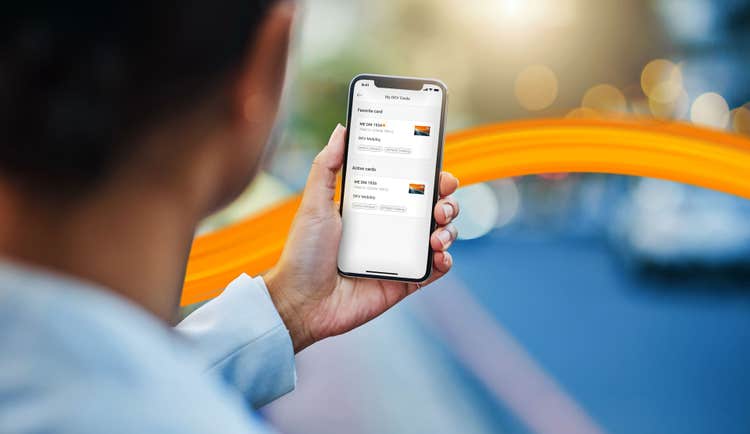
APP&GO - Your digital fuel card
Time is breathing down your neck and you need to get moving fast? DKV APP&GO is the ideal complement to your physical DKV Card - conveniently integrated into the DKV Mobility App. With your digital DKV fuel card, you can easily confirm fuelling and charging processes via your smartphone in the future. This is not only secure, but also very fast.
APP&GO is currently not available in the United Kingdom.
Your advantages with DKV APP&GO as a digital fuel card
- Fast and convenient
No waiting at the checkout: fuel or charge, confirm and continue straight away - Completely digital
Receive the delivery bill digitally on your smartphone - no more paperwork - High availability
Currently usable at around ${appgo} service stations and numerous charging points of major national and international brands - Always ready to use
No need to use the physical DKV Card at the cash register - the digital fuel card is digitally accessible via app at any time - International
Let us guide you through the fueling and charging process in your local language - numerous languages available
Here's how to set up your digital fuel and charge card with just a few clicks:
options-class__checkerboard
options-key__id
options-key__background-color
options-key__margin-top
options-key__margin-bottom
options-class__checkerboard-item
options-key__class-checkerboard-item-default
options-key__toggle-image-position-left
true
options-key__toggle-animation-enabled
component-class__checkerboard-item-container-text
component-separator-start_content-top
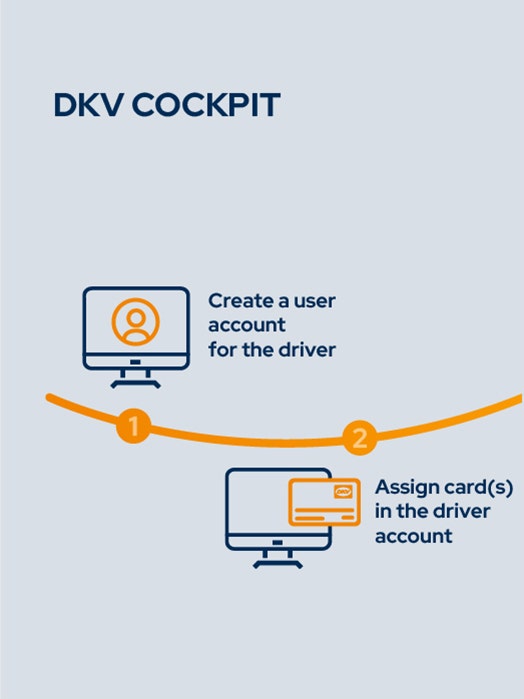
First two steps to be set up by fleet manager
Step 1: Create user account
The fleet manager creates a user account for the drivers in the {{"link": "https://my.dkv-mobility.com/settings/user-management", "linkStyle": "default", "linkTitle": "DKV COCKPIT,", "linkType": "external", "aria-label": "DKV COCKPIT,", "linkLabel": "DKV COCKPIT,", "target": "_blank"}} which will later be used for registration in the DKV Mobility App.
Step 2: Assign card
The fleet manager assigns the desired card for app use to the driver's user account. This step also takes place in the user administration in DKV COCKPIT.
component-separator-end_content-top
component-separator-start_content-bottom
component-separator-start_button
component-separator-end_button
component-separator-end_content-bottom
component-class__checkerboard-item-container-image
image
options-class__checkerboard-item
options-key__class-checkerboard-item-default
options-key__toggle-image-position-left
false
options-key__toggle-animation-enabled
component-class__checkerboard-item-container-text
component-separator-start_content-top
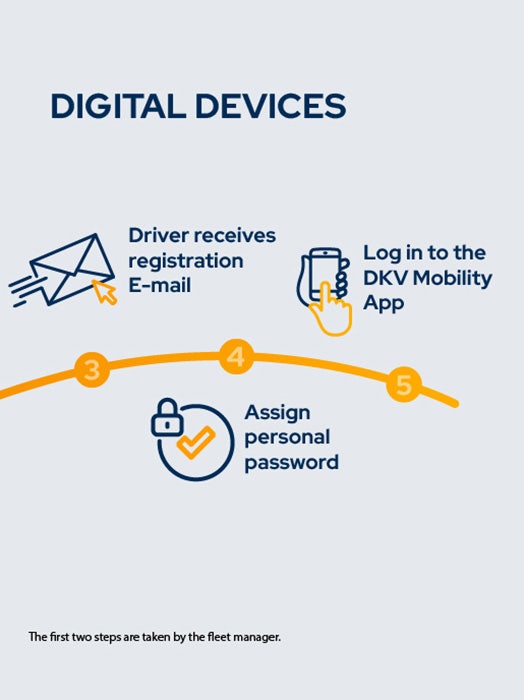
Next steps to be performed by the driver
Step 3: Receive registration email
Once the account is successfully created, drivers will receive a one-time password via email.
Step 4: Set personal password
Drivers use the link in the email to set a personal password. The account is now ready for use in the app.
Step 5: Login to the DKV Mobility App
Log in with the personal access data and enjoy all the benefits of the DKV Mobility App. In the "My cards" area, you will find all the cards that were previously assigned to the account in the DKV COCKPIT.
component-separator-end_content-top
component-separator-start_content-bottom
component-separator-start_button
component-separator-end_button
component-separator-end_content-bottom
component-class__checkerboard-item-container-image
image
How does APP&GO work?

options-class__interactive-form
options-key__id
dkv_contact
options-key__toggle-column-seperator
options-key__background-color
bg-blue-dark
options-key__margin-top
margin-top-2xl
options-key__margin-bottom
margin-bottom-2xl
options-class__interactive-form-text-item
options-key__class-interactive-form-text-item
component-class__interactive-form-text-item-title
Contact
component-class__interactive-form-text-item-text
Would you also like to benefit from the DKV Mobility advantages?
We will be happy to call you back.